Apple Final Cut Express HD Especificações Página 24
- Página / 162
- Índice
- MARCADORES

- Final Cut Express HD 1
- Getting Started 1
- Contents 3
- An Introduction 7
- 8 Preface 8
- 10 Preface 10
- Preface 11
- Apple Websites 12
- Connecting Your Camera 13
- Choosing an Easy Setup 14
- Setting Up Scratch Disks 15
- Getting to Know 17
- Your Editing Environment 17
- What Is a Project? 18
- What Is a Clip? 19
- What Is a Bin? 19
- What Is a Sequence? 19
- Selecting a Browser View 20
- Viewer Controls 21
- Opening Clips Into the Viewer 23
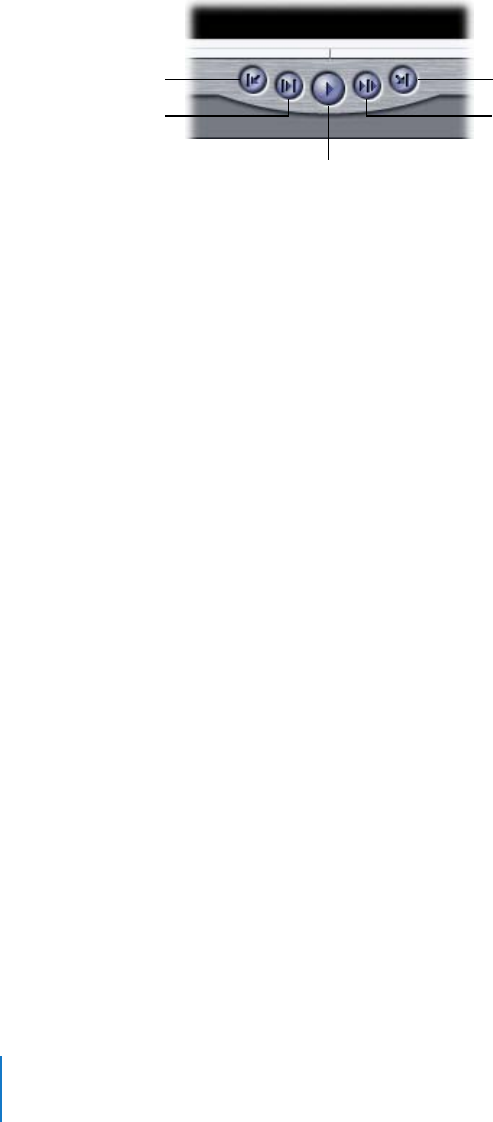
- Playing Clips in the Viewer 24
- Using In and Out Points 24
- Canvas Controls 26
- Edit Overlay 27
- Timeline Navigation 30
- Timeline Editing Controls 31
- Tool Palette 32
- Capturing Your Video 33
- Working in the Capture Window 35
- Logging Tab 38
- 3.6 MB/sec. 39
- DV-format video 39
- Capturing 40
- Capturing One Clip at a Time 41
- Mark In Mark Out 42
- Click here to 43
- The new clip appears in 43
- Click here to start 45
- Capturing Tip 46
- Select the item you 47
- Type the new name 47
- The item’s name changes 48
- A red slash indicates the 48
- Basic Editing 49
- Before You Begin 50
- Setting In and Out Points 51
- 52 Chapter 4 Basic Editing 52
- J,K, and L Keys 53
- Opening Your Project 54
- Chapter 4 Basic Editing 55 55
- 56 Chapter 4 Basic Editing 56
- Chapter 4 Basic Editing 57 57
- 58 Chapter 4 Basic Editing 58
- Locking Tracks 59
- Using the Razor Blade Tool 60
- Chapter 4 Basic Editing 61 61
- Doing a Lift Edit 62
- • Choose Sequence > Lift 63
- • Press Delete 63
- 64 Chapter 4 Basic Editing 64
- Chapter 4 Basic Editing 65 65
- Assigning Destination Tracks 66
- Chapter 4 Basic Editing 67 67
- Most Commonly Used Edits 68
- Overwrite edit 69
- To do an overwrite edit: 69
- 3 Save your project 70
- Insert Edits 71
- Superimpose Edits 72
- Chapter 4 Basic Editing 73 73
- 74 Chapter 4 Basic Editing 74
- Editing With Audio 75
- Resyncing Clips 76
- Audio moved away 77
- Before syncing 78
- After syncing 78
- Adding Music 79
- Drag the CD audio 80
- The CD audio file 80
- Click the Importing icon 81
- Using the Voice Over Tool 82
- Recording Your Voiceover 85
- Editing With Audio Tips 86
- Fine-Tuning Your Edit 89
- About the Tool Palette 90
- Doing a Ripple Edit 91
- Ripple edits are done 92
- Out point being trimmed 92
- Doing a Ripple Delete 94
- • Press Shift-Delete 95
- Doing a Roll Edit 96
- Indicates the Out point 97
- Indicates the In point 97
- Edit being rolled 98
- Tips on Editing 99
- Copying and Pasting Clips 100
- Changing a Clip’s Speed 101
- Changing the clip’s speed 102
- Out pointIn point 103
- Move the playhead to the 104
- The new clip starts where 104
- In point 105
- Move the playhead 105
- Set In and Out points 106
- The new clip fills the gap 106
- Adding Transitions 109
- Incoming overlap 110
- Outgoing overlap 110
- Incoming clip 110
- Outgoing clip 110
- Select an edit point where 112
- The added transition 112
- Adjusting a Transition 114
- Deleting a Transition 115
- Adding Effects 117
- Adjusting a Filter 119
- Disabling a Filter 121
- Removing a Filter 121
- Filter Tips 122
- Creating Titles and Credits 123
- Creating Opening Titles 124
- Creating Title Text 126
- Adding a Title to a Sequence 127
- Using Lower-Thirds 128
- Creating Rolling Credits 130
- Sharing Your Movie 133
- Exporting for the Web 135
- Making a Videotape 136
- Importing an iMovie Project 139
- Importing Stills 141
- The still image appears 142
- • Project files 143
- • Media files 143
- • Render files 143
- • Thumbnail files 143
- • Waveform files 143
- Solutions to Common Problems 145
- Problems During Playback 146
- General Performance Issues 149
- Problems With Audio Quality 149
- AppleCare Support 150
- Glossary 151
- 152 Glossary 152
- Glossary 153 153
- 154 Glossary 154
- 156 Index 156
- Index 157 157
- 158 Index 158
- Index 159 159
- 160 Index 160
- Index 161 161
Manuais e produtos relacionados com Software Apple Final Cut Express HD
 (11 páginas)
(134 páginas)
(36 páginas)
(98 páginas)
(43 páginas)
(37 páginas)
(250 páginas)
(246 páginas)
(38 páginas)
(167 páginas)
(48 páginas)
(10 páginas)
(16 páginas)
(19 páginas)
(11 páginas)
(134 páginas)
(36 páginas)
(98 páginas)
(43 páginas)
(37 páginas)
(250 páginas)
(246 páginas)
(38 páginas)
(167 páginas)
(48 páginas)
(10 páginas)
(16 páginas)
(19 páginas)
© 2020, manymanuals-pt.com. Todos os direitos reservados. | 0.048 s |
 Manymanuals.com
 Manymanuals.de
 Manymanuals.fr
 Manymanuals.it
 Manymanuals.pl
 Manymanuals.cz
 Manymanuals.es
 Manymanuals-pt.com
Comentários a estes Manuais