Apple iMac G5 Manual do Utilizador
Consulte online ou descarregue Manual do Utilizador para não Apple iMac G5. Apple Imac G5 User's Manual [es] Manual do Utilizador
- Página / 313
- Índice
- RESOLUÇÃO DE PROBLEMAS
- MARCADORES


- Service Source 1
- Take Apart 2
- Important Things to Know 6
- Removing the Back Cover 7
- Replacing the Back Cover 10
- Serial ATA Hard Drive 13
- Parallel ATA Hard Drive 22
- Removing the Optical Drive 30
- Replacing the Optical Drive 33
- Microfoam Shim 37
- Microfoam Shim 39
- Fan Cover 41
- Removing the Fan Cover 42
- Fan Cover 43
- Replacing the Fan Cover 44
- Fans, Upper 45
- Removing the Fans 46
- Replacing the Fans 50
- Inverter 53
- Removing the Inverter 54
- Inverter 55
- 3. Locate the optical drive 55
- Replacing the Inverter 61
- Memory (DIMMs) 67
- Removing the Memory 68
- Replacing the Memory 70
- Power Supply 71
- Removing the Power Supply 73
- Power Supply 77
- Replacing Power Supply 78
- AirPort Extreme Card 80
- AirPort Extreme Card 85
- Removing the Battery 87
- Battery 89
- Replacing the Battery 91
- Midplane Assembly 93
- Midplane Assembly 107
- fits together only one way) 122
- Midplane Assembly, No Optical 125
- Logic Board 151
- Removing the Logic Board 152
- Replacing the Logic Board 159
- Logic Board 160
- 18. Replace the memory 167
- Bluetooth Antenna Cable 170
- Bluetooth Antenna Cable 171
- Light Pipe with Gasket 175
- Light Pipe with Gasket 176
- 4. Replace the midplane 178
- 5. Replace the back cover 178
- Microphone Cable 179
- Removing the Microphone Cable 180
- Microphone Cable 181
- Speaker Set 185
- Removing the Speaker Set 186
- Speaker Set 188
- Replacing the Speaker Set 192
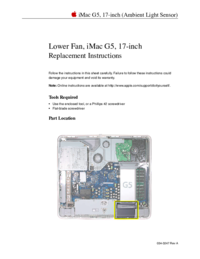
- Lower Fan 193
- Removing the Lower Fan 194
- Lower Fan 195
- Replacing the Lower Fan 196
- 3. Replace the speaker set 197
- AirPort Extreme Card Holder 198
- AirPort Extreme Card Holder 199
- Modem Board 201
- Removing the Modem Board 202
- Replacing the Modem Board 203
- Bluetooth Board 205
- Removing the Bluetooth Board 206
- Replacing the Bluetooth Board 207
- Bluetooth Board 208
- 3. Replace the two screws 208
- LCD Panel 209
- Removing the LCD Panel 210
- Replacing the LCD Panel 211
- Front Bezel 213
- Removing the Display Bezel 214
- Replacing the Front Bezel 215
- AirPort Extreme Antenna Cable 216
- Midplane Chassis 222
- Part Location 223
- Removing the Midplane Chassis 224
- Midplane Chassis 225
- Screw Charts 227
- To Access the Inverter 228
- To Access the Fan Cover 229
- To Access the Hard Drive 230
- Screw Charts 231
- Troubleshooting 236
- General Information 237
- Eligible Products 238
- Repair Strategy 239
- Replacement Parts 240
- Special CompTIA Codes 240
- Latin America 241
- Serial Number Location 242
- Diagnostic LEDs 243
- Internal Power Button 248
- SMU Button on the Logic Board 250
- DDR Memory 254
- Symptom Charts 255
- Power Issues 256
- No Video 261
- Scrambled or distorted video 264
- Hard Drive 267
- Optical Drive 268
- Inserting Discs Issue 271
- Fan Sound 272
- Heatsink Cleaning Procedure 275
- Speakers 279
- My mouse doesn’t work at all 280
- Keyboard 281
- Certain keys don't work 282
- Error Beep(s) 283
- A USB device doesn’t work 284
- Symptom Charts 285
- Screw Matrix and Part Numbers 288
- Screw Locators 290
- Screw Locators 294
- Repair Extension Program 298
- Repair Extension Program for 299
- Video and Power Issues 299
- Troubleshooting Video Issues 304
- Troubleshooting Power Issues 308
Resumo do Conteúdo
© 2005 Apple Computer, Inc. All rights reserved. Service SourceiMac G5 (17-inch) Updated 1 October 2007
8 - iMac G5, 17-inch Take Apart Replacing the Back Cover Replacing the Back Cover Tools Use the screwdriver provided, or a Phillips #2 screwdriver
98 - iMac G5, 17-inch Take Apart Midplane Assembly5. Locate the black video cable next to the fans. Using a Phillips #2 screw. Remove the two screws
iMac G5, 17-inch Take Apart - Midplane Assembly5. Locate the power supply at the bottom of the picture below.6. Loosen the middle power supply screw
100 - iMac G5, 17-inch Take Apart Midplane Assembly7. Turn the middle case screw to the right about five revolutions. This releases the back cover cl
iMac G5, 17-inch Take Apart - Midplane Assembly9. Remove the highlighted parts shown below (hard drive, memory, power supply, and the AirPort Extreme
102 - iMac G5, 17-inch Take Apart Midplane Assembly4. Remove the three hard drive screws. Set the screws aside.5. Carefully lift the hard drive stra
iMac G5, 17-inch Take Apart - Midplane Assembly6. Using your fingers, or a flat-blade screwdriver, disconnect the drive data cable and power cable from
104 - iMac G5, 17-inch Take Apart Midplane Assembly8. Rotate the computer to the right so the memory is in the position shown below.9. To release th
iMac G5, 17-inch Take Apart - Midplane Assembly11. Disconnect the antenna cable from the end of the installed AirPort Extreme card.12. Pull the tab o
106 - iMac G5, 17-inch Take Apart Midplane Assembly13. Reconnect the antenna cable to the hole on the AirPort card guide.14. Loosen the two outer p
iMac G5, 17-inch Take Apart - Midplane Assembly15. Disconnect the power supply cable by pressing the connector release tab and by prying apart the co
iMac G5, 17-inch Take Apart - 9 Replacing the Back Cover3. Lower and press the cover into place until it fits snugly on the computer. 4. Tighten th
108 - iMac G5, 17-inch Take Apart Midplane Assembly17. Tilt up the power supply until it clears the edge of the main circuit board. Lift it out of t
iMac G5, 17-inch Take Apart - Midplane AssemblyReplacing the Midplane Assembly1. Remove the replacement midplane from its packaging.2. Position the d
110 - iMac G5, 17-inch Take Apart Midplane Assembly3. Make sure that the black video cable is tucked into the groove on the bezel as shown. A cutout
iMac G5, 17-inch Take Apart - Midplane Assembly5. Locate the hard drive. Before lowering the hard drive into place, connect the drive data cable and
112 - iMac G5, 17-inch Take Apart Midplane Assembly4. Replace the three hard drive screws.5. Reconnect the video cable and replace the two video cab
iMac G5, 17-inch Take Apart - Midplane Assembly6. Press the top end of the video cable into the notch on the midplane chassis.4. Replace the fan cove
114 - iMac G5, 17-inch Take Apart Midplane Assembly5. Replace the memory module(s) by lining up the notch on the module with the notch on the slot.6
iMac G5, 17-inch Take Apart - Midplane Assembly7. Replace the AirPort Extreme card. Remove the AirPort antenna cable (by pulling the tab) from the op
116 - iMac G5, 17-inch Take Apart Midplane Assembly9. Lower the power supply into the midplane. 10. Connect the black power supply connector and tig
iMac G5, 17-inch Take Apart - Midplane Assembly4. Replace the six case screws. (The shorter screws attach along the top.) 5. Locate the inverter boar
10 - iMac G5, 17-inch Take Apart Replacing the Back Cover5. Make sure the case is not bowing along the bottom or sides. If it is, check that the o
118 - iMac G5, 17-inch Take Apart Midplane Assemblyyour fingers on the pins located next to the white connector.
iMac G5, 17-inch Take Apart - Midplane Assembly7. As you lower the inverter into place, connect the black connector to the pins on the board. Use the
120 - iMac G5, 17-inch Take Apart Midplane Assembly5. Reconnect the inverter-to-display panel cable. Important: The connector is keyed (it fits toget
iMac G5, 17-inch Take Apart - Midplane Assembly7. Locate the optical drive that you set aside. Holding the optical drive by the back end (near the ta
122 - iMac G5, 17-inch Take Apart Midplane Assembly4. Replace the three optical drive screws. 5. Turn the middle case screw to the left about five re
iMac G5, 17-inch Take Apart - Midplane Assembly, No OpticalMidplane Assembly, No OpticalTools Required• Phillips #2 screwdriver, preferably with a ma
124 - iMac G5, 17-inch Take Apart Midplane Assembly, No OpticalRemoving the Midplane, No Optical1. To access the midplane assembly you must first rem
iMac G5, 17-inch Take Apart - Midplane Assembly, No Optical3. Locate the inverter on the left side of the computer. 4. Locate the inverter-to-display
126 - iMac G5, 17-inch Take Apart Midplane Assembly, No Optical5. Release the cable from the clip. Disconnect the cable connector.4. Using the iMac
iMac G5, 17-inch Take Apart - Midplane Assembly, No Optical5. Lift the inverter straight up to disconnect the inverter board.6. Disconnect the white
iMac G5, 17-inch Take Apart - Serial ATA Hard Drive Serial ATA Hard Drive Tools • Use the screwdriver provided, or a Phillips #2 screwdriver, prefer
128 - iMac G5, 17-inch Take Apart Midplane Assembly, No Optical7. Locate the black video cable at the top of the computer. 4. Remove the two screws
iMac G5, 17-inch Take Apart - Midplane Assembly, No Optical4. Using the Phillips screwdriver, remove six screws that attach the midplane to the displ
130 - iMac G5, 17-inch Take Apart Midplane Assembly, No Optical6. Loosen the captive power supply screw (circled below) by turning it to the left. L
iMac G5, 17-inch Take Apart - Midplane Assembly, No Optical8. Locate the pull tab at the top of the computer. Pull the tab up to release the midplane
132 - iMac G5, 17-inch Take Apart Midplane Assembly, No Optical10. Locate the hard drive in the top right corner.4. Remove the three hard drive scre
iMac G5, 17-inch Take Apart - Midplane Assembly, No Optical5. Locate the black cable and white connector on the end of the hard drive. 6. Carefully l
134 - iMac G5, 17-inch Take Apart Midplane Assembly, No Optical7. Using your fingers, disconnect the drive data cable and power cable from the hard d
iMac G5, 17-inch Take Apart - Midplane Assembly, No Optical9. Rotate the computer to the left so the memory is in the position shown below.10. To rel
136 - iMac G5, 17-inch Take Apart Midplane Assembly, No Optical12. Loosen the two outer screws on the power supply by turning them to the left. Note
iMac G5, 17-inch Take Apart - Midplane Assembly, No Optical14. Pull the power supply cable out of the connector.Tilt up the power supply and lift it
12 - iMac G5, 17-inch Take Apart Serial ATA Hard Drive Removing the Serial ATA Hard Drive 1. To access the hard drive you must first remove other s
138 - iMac G5, 17-inch Take Apart Midplane Assembly, No OpticalReplacement the Midplane, No Optical1. Remove the replacement midplane from its packa
iMac G5, 17-inch Take Apart - Midplane Assembly, No Optical3. Make sure that the black video cable is tucked into the groove on the bezel as shown. A
140 - iMac G5, 17-inch Take Apart Midplane Assembly, No Optical5. Locate the hard drive. Connect the drive data cable and power cable to the hard dr
iMac G5, 17-inch Take Apart - Midplane Assembly, No Optical4. Replace the three hard drive screws.4. Reconnect the video cable and replace the two vi
142 - iMac G5, 17-inch Take Apart Midplane Assembly, No Optical5. Replace the memory module(s) by lining up the notch on the module with the notch o
iMac G5, 17-inch Take Apart - Midplane Assembly, No Optical7. Lower the power supply into the midplane. 8. Connect the black power supply connector a
144 - iMac G5, 17-inch Take Apart Midplane Assembly, No Optical4. Replace the six case screws.The shorter screws attach along the top.5. Locate the
iMac G5, 17-inch Take Apart - Midplane Assembly, No Optical6. Connect the white connector on the inverter board to the main board. Route this cable a
146 - iMac G5, 17-inch Take Apart Midplane Assembly, No Optical7. As you lower the inverter into place, connect the black connector to the pins on t
iMac G5, 17-inch Take Apart - Midplane Assembly, No Optical5. Reconnect the inverter-to-display panel cable. Important: The connector is keyed (it fit
iMac G5, 17-inch Take Apart - Serial ATA Hard Drive3. Locate the fan cover near the top of the computer.4. Using the tool provided, or a Phillips #2
148 - iMac G5, 17-inch Take Apart Midplane Assembly, No Optical7. Turn the middle case screw to the left about five revolutions. This step prepares t
iMac G5, 17-inch Take Apart - Logic BoardLogic BoardTools • Phillips #2 screwdriver • Torx-10 flat-blade • Torx-6• Flat-blade screwdriver• Screw tray
150 - iMac G5, 17-inch Take Apart Logic BoardRemoving the Logic Board1. At the top of the logic board, near the fan, disconnect the two fan connecto
iMac G5, 17-inch Take Apart - Logic Board3. Disconnect the hard drive thermal sensor (near the memory slots) from the logic board. Leave the other en
152 - iMac G5, 17-inch Take Apart Logic Board5. On the left side of the board, use a T-6 screwdriver to remove the two screws on the Airport Extreme
iMac G5, 17-inch Take Apart - Logic Board7. Using the T-6 screwdriver, remove the two modem screws. 8. Lift the modem straight up and off the logic b
154 - iMac G5, 17-inch Take Apart Logic Board9. Using a T-6 screwdriver, remove the two screws on the Bluetooth board (if present). Note: This grap
iMac G5, 17-inch Take Apart - Logic Board11. Disconnect the three connectors near the bottom left corner of the midplane. These cables connect to the
156 - iMac G5, 17-inch Take Apart Logic Board13. Carefully lift the logic board out of the midplane chassis. Do not flex the board as you remove it f
iMac G5, 17-inch Take Apart - Logic BoardReplacing the Logic Board1. Locate the cleaning wipe and syringe in the replacement logic board box. 2. Cean
14 - iMac G5, 17-inch Take Apart Serial ATA Hard Drive5. Locate the hard drive in the top right corner.6. Move the black video cable (located to t
158 - iMac G5, 17-inch Take Apart Logic Board3. Whenever you remove the logic board clean the U3 chip (circled)4. Add 1 1/2 to 2 syringes of therma
iMac G5, 17-inch Take Apart - Logic Board5. Locate the light pipe gasket on the back of the board.6. Peel the adhesive backing off the gasket. Attach
160 - iMac G5, 17-inch Take Apart Logic Board7. Before placing the logic board into the chassis, move or tape the cables (shown below) out of the
iMac G5, 17-inch Take Apart - Logic Board9. Connect the three cables (speakers, microphone and lower fan) in the bottom left corner of the midplane.
162 - iMac G5, 17-inch Take Apart Logic Board11. If present, connect the Bluetooth antenna to the Bluetooth board and replace the two T-6 screws.
iMac G5, 17-inch Take Apart - Logic Board13. Replace the two T-6 modem screws. 14. Place the AirPort card guide on the logic board and slide the ant
164 - iMac G5, 17-inch Take Apart Logic Board15. Replace the two T-6 screws on the AirPort Card guide, attach the AirPort antenna, and connect the
iMac G5, 17-inch Take Apart - Logic Board17. Rotate the computer to the right. Connect the hard drive thermal sensor to the logic board. Make sure th
166 - iMac G5, 17-inch Take Apart Logic Board19. Connect the video cable to the logic board and replace the two screws.
iMac G5, 17-inch Take Apart - Logic Board20. Reconnect the hard drive and fan cables to the logic board. 21. Replace the inverter.22. Replace the opt
iMac G5, 17-inch Take Apart - Serial ATA Hard Drive4. Remove the three hard drive screws. Set the screws aside.5. Carefully lift the hard drive stra
168 - iMac G5, 17-inch Take Apart Bluetooth Antenna CableBluetooth Antenna CableTools Required• Nylon probe tool• Flat-blade screwdriverPreliminary
iMac G5, 17-inch Take Apart - Bluetooth Antenna CableRemoving the Bluetooth Antenna Cable1. Holding the midplane vertical, route the Bluetooth antenn
170 - iMac G5, 17-inch Take Apart Bluetooth Antenna Cable2. On the other side of the midplane, note the placement of the other end of the Bluetooth
iMac G5, 17-inch Take Apart - Bluetooth Antenna Cable4. Release the Bluetooth antenna cable from the chassis guides. If necessary, use a flat-blade sc
172 - iMac G5, 17-inch Take Apart Bluetooth Antenna CableReplacing the Bluetooth Antenna Cable1. On the back of the midplane chassis, route the Blue
iMac G5, 17-inch Take Apart - Light Pipe with GasketLight Pipe with GasketTools RequiredNo tools are required for this procedure.Preliminary StepsBef
174 - iMac G5, 17-inch Take Apart Light Pipe with GasketRemoving the Light Pipe with Gasket1. On the underside of the midplane chassis, locate the l
iMac G5, 17-inch Take Apart - Light Pipe with GasketReplacing the Light Pipe with Gasket1. Peel the adhesive backing off of the narrower end of the l
176 - iMac G5, 17-inch Take Apart Light Pipe with Gasket3. Press the light pipe with gasket into place.4. Replace the midplane.5. Replace the back c
iMac G5, 17-inch Take Apart - Microphone CableMicrophone CableTools Required• Needlenose pliersPreliminary StepsBefore you begin, remove the followin
16 - iMac G5, 17-inch Take Apart Serial ATA Hard Drive6. Using your fingers, or a flat-blade screwdriver, disconnect the drive data cable and power
178 - iMac G5, 17-inch Take Apart Microphone CableRemoving the Microphone Cable1. From the top of the logic board at the bottom of the port bank, us
iMac G5, 17-inch Take Apart - Microphone Cable3. Place the midplane upright. Holding the other cables aside, route the fan cable and connector throug
180 - iMac G5, 17-inch Take Apart Microphone Cable4. Route the microphone cable connector through the midplane chassis opening.Important: The microp
iMac G5, 17-inch Take Apart - Microphone Cable5. Note the routing of the microphone cable. Peel up the speaker tape, and lift up the microphone cable
182 - iMac G5, 17-inch Take Apart Microphone CableReplacing the Microphone Cable1. Secure the microphone cable to the speaker, and apply new tape.No
iMac G5, 17-inch Take Apart - Speaker SetSpeaker SetTools Required• Needlenose pliers• Torx T10 screwdriver, preferably with a magnetized tip• Flat-b
184 - iMac G5, 17-inch Take Apart Speaker SetRemoving the Speaker Set1. Locate the two speakers on the midplane chassis.2. From the top of the logic
iMac G5, 17-inch Take Apart - Speaker Set5. Route the narrower microphone cable connector through the opening in the midplane chassis. Note: The imag
186 - iMac G5, 17-inch Take Apart Speaker Set6. Route the widest speaker cable connector through the midplane chassis opening.7. Place the midplane
iMac G5, 17-inch Take Apart - Speaker Set8. Lift the speaker off of the chassis standoff.9. Without straining the speaker or fan cable, use a flat-bla
iMac G5, 17-inch Take Apart - Serial ATA Hard Drive Replacing the Serial ATA Hard Drive 1. Remove the replacement hard drive from its packaging. 2.
188 - iMac G5, 17-inch Take Apart Speaker Set10. Remove the two screws at the other speaker.11. Lift the speaker off of the chassis standoff.
iMac G5, 17-inch Take Apart - Speaker Set12. Replacement Note: If you are replacing the speaker set, remove the microphone cable from the speaker an
190 - iMac G5, 17-inch Take Apart Speaker SetReplacing the Speaker Set1. Note: The speaker set includes the two speakers, speaker housing, and attac
iMac G5, 17-inch Take Apart - Lower FanLower FanTools Required• Flat-blade screwdriverPreliminary StepsBefore you begin, remove the following:• Back
192 - iMac G5, 17-inch Take Apart Lower FanRemoving the Lower Fan1. Position the midplane assembly at the edge of a table so the fan cable dangles a
iMac G5, 17-inch Take Apart - Lower Fan3. Remove the fan from the chassis.
194 - iMac G5, 17-inch Take Apart Lower FanReplacing the Lower Fan1. Before installing the replacement fan, make sure the fan housing includes:• rec
iMac G5, 17-inch Take Apart - Lower Fan3. Replace the speaker set.4. Replace the midplane.5. Replace the back cover.
196 - iMac G5, 17-inch Take Apart AirPort Extreme Card HolderAirPort Extreme Card HolderTools Required• Torx T6 screwdriver, preferably with a magne
iMac G5, 17-inch Take Apart - AirPort Extreme Card HolderRemoving the AirPort Extreme Card Holder1. Remove the two identical T6 screws from the top o
© 2004 Apple Computer, Inc. All rights reserved. Service SourceTake Apart iMac G5 (17-inch)
18 - iMac G5, 17-inch Take Apart Serial ATA Hard Drive4. Replace the three hard drive screws.5. Tuck the black video cable into the area shown by
198 - iMac G5, 17-inch Take Apart AirPort Extreme Card HolderReplacing the AirPort Extreme Card Holder1. Route the AirPort antenna cable into the ho
iMac G5, 17-inch Take Apart - Modem BoardModem BoardTools Required• Torx T6 screwdriver, preferably with a magnetized tip• Screw tray or something eq
200 - iMac G5, 17-inch Take Apart Modem BoardRemoving the Modem Board1. Locate the modem board.2. Remove the two identical T6 screws.3. Holding the
iMac G5, 17-inch Take Apart - Modem BoardReplacing the Modem Board1. Connect the modem cable.2. Holding the top and bottom edges of the board, align
202 - iMac G5, 17-inch Take Apart Modem Board3. Replace the two screws.4. Replace the AirPort Extreme Card holder.5. Replace the AirPort Extreme Car
iMac G5, 17-inch Take Apart - Bluetooth BoardBluetooth BoardTools Required• Torx T6 screwdriver, preferably with a magnetized tip• Screw tray or some
204 - iMac G5, 17-inch Take Apart Bluetooth BoardRemoving the Bluetooth Board1. Locate the Bluetooth board.2. Remove the two identical T6 screws.3.
iMac G5, 17-inch Take Apart - Bluetooth BoardReplacing the Bluetooth Board1. Connect the Bluetooth antenna cable.Note: This graphic shows the Bluetoo
206 - iMac G5, 17-inch Take Apart Bluetooth Board3. Replace the two screws.4. Replace the AirPort Extreme Card.5. Replace the back cover.
iMac G5, 17-inch Take Apart - LCD PanelLCD PanelTools Required• Torx T10 screwdriver, preferably with a magnetized tip• Clean, soft, lint-free towel
iMac G5, 17-inch Take Apart - Serial ATA Hard Drive6. Press the video cable into the notch on the midplane chassis.4. Replace the two fan cover scre
208 - iMac G5, 17-inch Take Apart LCD PanelRemoving the LCD Panel1. Place the display bezel/LCD panel assembly face-down on a clean, soft, lint-free
iMac G5, 17-inch Take Apart - LCD PanelReplacing the LCD Panel1. Check the routing of the LCD panel cables.Note: The replacement LCD panel includes t
210 - iMac G5, 17-inch Take Apart LCD Panel3. Place the LCD panel into the display bezel so that all four screw holes on the brackets align with the
iMac G5, 17-inch Take Apart - Front BezelFront BezelTools Required• Clean, soft, lint-free towel or blanketPreliminary StepsBefore you begin, remove
212 - iMac G5, 17-inch Take Apart Front BezelRemoving the Display BezelWith all preliminary steps performed, the display bezel is the part that rema
iMac G5, 17-inch Take Apart - Front BezelReplacing the Front Bezel1. Before installing the LCD panel and reassembling the computer, make sure the dis
214 - iMac G5, 17-inch Take Apart AirPort Extreme Antenna CableAirPort Extreme Antenna CableTools Required• Torx T10 screwdriver, preferably with a
iMac G5, 17-inch Take Apart - AirPort Extreme Antenna CableRemoving the AirPort Extreme Antenna Cable1. Locate the pull tab at the top of the compute
216 - iMac G5, 17-inch Take Apart AirPort Extreme Antenna Cable3. Starting at the plug end of the AirPort antenna, release the cable from the cable
iMac G5, 17-inch Take Apart - AirPort Extreme Antenna Cable5. Route the cable through the corner opening in the midplane chassis.6. Note that the Air
20 - iMac G5, 17-inch Take Apart Parallel ATA Hard Drive Parallel ATA Hard Drive Tools • Use the screwdriver provided, or a Phillips #2 screwdriv
218 - iMac G5, 17-inch Take Apart AirPort Extreme Antenna CableReplacing the AirPort Extreme Antenna Cable1. Route the antenna through the corner op
iMac G5, 17-inch Take Apart - AirPort Extreme Antenna Cable5. Replace the memory.6. Replace the fan cover.7. Replace the inverter.8. Replace the opti
220 - iMac G5, 17-inch Take Apart Midplane ChassisMidplane ChassisTools Required• Torx T10 screwdriver, preferably with a magnetized tip• Screw tray
iMac G5, 17-inch Take Apart - Midplane ChassisPart Location
222 - iMac G5, 17-inch Take Apart Midplane ChassisRemoving the Midplane Chassis1. Remove the three T10 screws from the copper heatpad. Set the heatp
iMac G5, 17-inch Take Apart - Midplane Chassis3. On the other side of the chassis, note that the midplane chassis includes the mesh tape that borders
224 - iMac G5, 17-inch Take Apart Midplane ChassisReplacing the Midplane Chassis1. Transfer the copper heatpad to the replacement chassis. Replace t
iMac G5, 17-inch Take Apart - Screw ChartsScrew ChartsTo Access the Optical Drive
226 - iMac G5, 17-inch Take Apart Screw ChartsTo Access the Inverter
iMac G5, 17-inch Take Apart - Screw ChartsTo Access the Fan Cover
iMac G5, 17-inch Take Apart - Parallel ATA Hard Drive Removing the Parallel ATA Hard Drive 1. Ground yourself. Touch the metal surface (as shown bel
228 - iMac G5, 17-inch Take Apart Screw ChartsTo Access the Hard Drive
iMac G5, 17-inch Take Apart - Screw ChartsTo Access the Display/Bezel-Part 1
230 - iMac G5, 17-inch Take Apart Screw ChartsTo Access the Display/Bezel-Part 2
iMac G5, 17-inch Take Apart - Screw ChartsTo Access the Midplane Assembly-Part 1
232 - iMac G5, 17-inch Take Apart Screw ChartsTo Access the Midplane Assembly-Part 2
iMac G5, 17-inch Take Apart - Screw Charts
© 2004 Apple Computer, Inc. All rights reserved. Service SourceTroubleshooting iMac G5 (17-inch)
iMac G5, 17-inch Troubleshooting - 1 General Information General Information iMac G5 Repair Extension Program (REP) for Video and Power Issues App
2 - iMac G5, 17-inch Troubleshooting General Information Eligible Products The program is available for first generation iMac G5 models that were sol
iMac G5, 17-inch Troubleshooting - 3 General Information Note: Only first generation iMac G5 models are eligible for the repair extension program..
22 - iMac G5, 17-inch Take Apart Parallel ATA Hard Drive2. Locate the parallel ATA hard drive in the top right corner.4. Remove the three hard dri
4 - iMac G5, 17-inch Troubleshooting General Information Replacement Parts If a logic board and/or power supply must be replaced, order on a like-fo
iMac G5, 17-inch Troubleshooting - 5 General Information Japan Service providers in Japan who create a Mail-In Repair for iMac products eligible fo
6 - iMac G5, 17-inch Troubleshooting General Information Serial Number Location The iMac G5 serial number is located on the bottom of the computer s
iMac G5, 17-inch Troubleshooting - 7 General Information Diagnostic LEDs The iMac G5 has built-in diagnostic LEDs (shown below) on the main logic b
8 - iMac G5, 17-inch Troubleshooting General Information3. Place a soft, clean towel or cloth on the desk or surface. Hold the sides of the computer
iMac G5, 17-inch Troubleshooting - 9 General Information5. As you hold the metal foot, tilt the back cover up and lift it away from the computer. T
10 - iMac G5, 17-inch Troubleshooting General Information7. Locate the large white arrow in the middle of the board. 8. Above this arrow, you'l
iMac G5, 17-inch Troubleshooting - 11 General Information• LED 2 indicates that the main logic board has detected proper power from the power supp
12 - iMac G5, 17-inch Troubleshooting General Information Internal Power Button To the left of the diagnostic LEDs are two buttons. The top button i
iMac G5, 17-inch Troubleshooting - 13 General Information To power the computer on with the back cover off: 1. First remove the back cover.2. Plug
iMac G5, 17-inch Take Apart - Parallel ATA Hard Drive5. Locate the white connector on the end of the hard drive.6. Carefully lift the hard drive str
14 - iMac G5, 17-inch Troubleshooting General Information SMU Button on the Logic Board The iMac G5 uses an advanced system management unit (SMU) to
iMac G5, 17-inch Troubleshooting - 15 General Information Note: If Mac OS X is not booted and the alternate development operating system does not
16 - iMac G5, 17-inch Troubleshooting General Information Ports The iMac G5 ports are shown below.
iMac G5, 17-inch Troubleshooting - 17 General Information Spares Kit Shipping with Replacement Modules 1. An extra thermal sensor cable (shown belo
18 - iMac G5, 17-inch Troubleshooting General Information DDR Memory iMac G5 computers work with memory modules (DIMMs) that meet all of these crite
iMac G5, 17-inch Troubleshooting - 19 Symptom Charts Symptom Charts How to Use the Symptom Charts The Symptom Charts included in this chapter will
20 - iMac G5, 17-inch Troubleshooting Symptom Charts Power Issues No Power. The iMac G5 will not turn on. 1. Refer to the iMac G5 Repair Extension P
iMac G5, 17-inch Troubleshooting - 21 Symptom Charts8. Plug the power cord into the iMac G5 and into the AC outlet. Check to see if LED #1 is On or
22 - iMac G5, 17-inch Troubleshooting Symptom Charts10. Does the computer start up normally after pressing the internal power button?- Yes : Press
iMac G5, 17-inch Troubleshooting - 23 Symptom Charts Yes : The hard drive needs to be replaced. No : Go to the next step.13. When pressing the inte
24 - iMac G5, 17-inch Take Apart Parallel ATA Hard Drive7. Using your fingers, disconnect the drive data cable and power cable from the hard drive.
24 - iMac G5, 17-inch Troubleshooting Symptom Charts Loud buzzing, ticking, or whining noise The computer may make a loud buzzing, ticking, or whini
iMac G5, 17-inch Troubleshooting - 25 Symptom Charts No Video The computer will turn on and there is no picture or color on the display. The boot c
26 - iMac G5, 17-inch Troubleshooting Symptom Charts6. Remove the back cover to access the diagnostic LEDs on the logic board. 7. With the back cover
iMac G5, 17-inch Troubleshooting - 27 Symptom Charts10. When the computer starts up, LED #2 will light after you hear the boot chime indicating the lo
28 - iMac G5, 17-inch Troubleshooting Symptom Charts13. Unplug the iMac G5 and remove the SDRAM. Replace with known good SDRAM. Plug the iMac G5 back
iMac G5, 17-inch Troubleshooting - 29 Symptom ChartsDisplay is tinted another color1. Refer to the iMac G5 Repair Extension Program mentioned at the b
30 - iMac G5, 17-inch Troubleshooting Symptom ChartsWhen displaying a single color over the screen area, the LCD panel shows one or more pixels that a
iMac G5, 17-inch Troubleshooting - 31 Symptom ChartsHard DriveIn a hard drive failure, the computer fails to boot to the desktop and may display a flas
32 - iMac G5, 17-inch Troubleshooting Symptom ChartsFlashing question mark appears on the screen1. Boot from the system CD that came with the computer
iMac G5, 17-inch Troubleshooting - 33 Symptom ChartsNo: The next thing to check to make sure the computer realizes the drive is there. From the Apple
iMac G5, 17-inch Take Apart - Parallel ATA Hard Drive Replacing the Parallel ATA Hard Drive 1. Remove the replacement hard drive from its packaging.
34 - iMac G5, 17-inch Troubleshooting Symptom Chartsinformation.• Unknown Error: If you see “Unknown Error”, without “-2147352480”, you will want to s
iMac G5, 17-inch Troubleshooting - 35 Symptom ChartsInserting Discs Issue1. Is there a disc already in the drive? Refer to Knowledge Base article 1067
36 - iMac G5, 17-inch Troubleshooting Symptom ChartsFan SoundLoud fan noise coming from inside the computerThe grill on the bottom of the iMac G5 lets
iMac G5, 17-inch Troubleshooting - 37 Symptom Chartsincrease their speed to cool the system the sound level will increase. This is normal operation an
38 - iMac G5, 17-inch Troubleshooting Symptom Charts6. With the cover off, plug the computer in and start it up by pressing the internal power button.
iMac G5, 17-inch Troubleshooting - 39 Symptom ChartsHeatsink Cleaning ProcedureDust drawn in through the intake grill on the bottom of the iMac can gr
40 - iMac G5, 17-inch Troubleshooting Symptom Charts4. If the dust has accumulated on the cooling fins then use compressed air from a can or an air com
iMac G5, 17-inch Troubleshooting - 41 Symptom ChartsAirPortNot able to connect wirelessly with AirPort1. From the Apple menu, choose About this Mac. 2
42 - iMac G5, 17-inch Troubleshooting Symptom ChartsMy AirPort signal seems to be very week1. Check your antenna. If the AirPort antenna is not plugg
iMac G5, 17-inch Troubleshooting - 43 Symptom ChartsSpeakersI don’t hear sound from the speakers.1. Press the F5 button on your keyboard. It has a sou
26 - iMac G5, 17-inch Take Apart Parallel ATA Hard Drive4. Replace the three hard drive screws. . 5. Before replacing the back cover, tuck the bla
44 - iMac G5, 17-inch Troubleshooting Symptom ChartsI hear sound out of only one speaker.1. Are there any external microphones, speakers or headphones
iMac G5, 17-inch Troubleshooting - 45 Symptom Charts3. Try a known good USB mouse.4. Replace the mouse.5. Replace the logic board.The mouse is slow to
46 - iMac G5, 17-inch Troubleshooting Symptom ChartsNo: Replace the logic board.Certain keys don't work.1. Unplug all devices from your computer,
iMac G5, 17-inch Troubleshooting - 47 Symptom ChartsWhen I type, strange characters appear on the screen.1. Depending on your iMac's settings, a
48 - iMac G5, 17-inch Troubleshooting Symptom Charts2. Reseat the memory into the slot.3. Replace the memory.4. Replace the logic board.USBA USB devic
iMac G5, 17-inch Troubleshooting - 49 Symptom Charts
© 2005 Apple Computer, Inc. All rights reserved. Service SourceViews iMac G5, 17-inch
iMac G5,17-inch Views - 1 iMac G5 (17-inch) iMac G5 (17-inch)Cable, Hard Drive Sensor922-6790Cable, Hard Drive, Data, PATA922-6791Cable, Hard Driv
2 - iMac G5, 17-inch Views Screw Matrix and Part Numbers Screw Matrix and Part Numbers iMac G5 (17-inch) Note: Th
iMac G5,17-inch Views - 3 Screw Matrix and Part Numbers 922- • Modem (2) T6• Bluetooth (2) T6• AirPort Guide (2) T6 922-6842 • Ai
iMac G5, 17-inch Take Apart - Optical Drive Optical Drive Tools • Use the screwdriver provided, or a Phillips #2 screwdriver, preferably with a mag
4 - iMac G5, 17-inch Views Screw Locators Screw Locators To Access the Optical Drive
iMac G5,17-inch Views - 5 Screw Locators To Access the Inverter
6 - iMac G5, 17-inch Views Screw Locators To Access the Fan Cover
iMac G5,17-inch Views - 7 Screw Locators To Access the Hard Drive
8 - iMac G5, 17-inch Views Screw Locators To Access the Display/Bezel-Part 1
iMac G5,17-inch Views - 9 Screw Locators To Access the Display/Bezel-Part 2
10 - iMac G5, 17-inch Views Screw Locators To Access the Midplane Assembly-Part 1
iMac G5,17-inch Views - 11 Screw Locators To Access the Midplane Assembly-Part 2
© 2005 Apple Computer, Inc. All rights reserved. Service SourceRepair Extension Program iMac G5 (17-inch)
iMac G5 (17-inch) Repair Extension Program - 1 Repair Extension Program for Video and Power Issues Apple has announced the iMac G5 Repair Extension
iMac G5, 17-inch Take Apart - 1 General Information General Information What’s New October 2007 Updated Logic Board replacement procedure. A “cau
28 - iMac G5, 17-inch Take Apart Optical Drive Removing the Optical Drive 1. Ground yourself. Touch the metal surface (as shown below) on the insi
iMac G5 (17-inch) Repair Extension Program - 2 Eligible Products The program is available for first generation iMac G5 models that were sold between
iMac G5 (17-inch) Repair Extension Program - 3Note: Only first generation iMac G5 models are eligible for the repair extension program.. Note: Cust
iMac G5 (17-inch) Repair Extension Program - 4 Replacement Parts If a logic board and/or power supply must be replaced, order on a like-for-like bas
iMac G5 (17-inch) Repair Extension Program - 5 European IMCs For repairs covered under the iMac G5 REP for Video and Power Issues, IMCs in Europe mu
iMac G5 (17-inch) Repair Extension Program - 6 Troubleshooting Video Issues Video Symptoms Affected computers will exhibit one or more of the follow
iMac G5 (17-inch) Repair Extension Program - 7 4. Affected capacitors will have a “+” sign stamped into the top of the capacitor. Note: Not all c
iMac G5 (17-inch) Repair Extension Program - 8 6. If the logic board has bulged or vented capacitors, replace the logic board. 7. If the logic board
iMac G5 (17-inch) Repair Extension Program - 9 Special CompTIA Codes Apple has created the following two CompTIA Codes to use for repairs on iMac pr
iMac G5 (17-inch) Repair Extension Program - 10 Troubleshooting Power Issues Power Symptoms The affected power supplies are rated for 100VAC-127VAC
iMac G5 (17-inch) Repair Extension Program - 11 5. Remove the power supply. Turn over the power supply to view the label. Affected power supplies ha
iMac G5, 17-inch Take Apart - Optical Drive2. Locate the optical drive in the top left corner.4. Using a Phillips #2 screwdriver, remove the three o
iMac G5 (17-inch) Repair Extension Program - 12 7. While doing the power supply repair, inspect the capacitors (highlighted below) on the logic boar
iMac G5 (17-inch) Repair Extension Program - 13 9. Failed capacitors will no longer have a flat top and can be identified by signs of bulging (shown b
iMac G5 (17-inch) Repair Extension Program - 14 Special CompTIA Codes Apple has created the following two CompTIA Codes to use for repairs on iMac p
iMac G5 (17-inch) Repair Extension Program - 15 European IMCs For repairs covered under the iMac G5 REP for Video and Power Issues, IMCs in Europe m
30 - iMac G5, 17-inch Take Apart Optical Drive5. Pull the optical drive tab straight up and then to the right. Set the optical drive aside.
iMac G5, 17-inch Take Apart - Optical Drive Replacing the Optical Drive 1. Note: A microfoam shim is included with the replacement optical drive a
32 - iMac G5, 17-inch Take Apart Optical Drive4. Tuck the mircofoam into place before installing the optical drive.5. Remove the replacement optic
iMac G5, 17-inch Take Apart - Optical Drive7. The optical drive will click into place when you push down near the pull tab. Note: If the optical
34 - iMac G5, 17-inch Take Apart Optical Drive9. Replace the three optical drive screws.
iMac G5, 17-inch Take Apart - Microfoam Shim Microfoam Shim Tools Required • Use the screwdriver provided, or a Phillips #2 screwdriver, preferably
36 - iMac G5, 17-inch Take Apart Microfoam ShimInstalling the Microfoam onto the Bezel 1. Steps 2-7 show photos of the microfoam inside the iMac G5
iMac G5, 17-inch Take Apart - Microfoam Shim4. Tuck the mircofoam into place before installing the optical drive.5. Replace the optical drive in the
2 - iMac G5, 17-inch Take Apart General Information• AirPort antenna• Bluetooth antenna• LED light pipe
38 - iMac G5, 17-inch Take Apart Microfoam Shim6. Slide the optical drive into place and press down near the tab to reconnect the drive. 7. Make sur
iMac G5, 17-inch Take Apart - Fan CoverFan CoverTools Required• Use the screwdriver provided, and a Phillips #2 screwdriver, preferably with a magnet
40 - iMac G5, 17-inch Take Apart Fan CoverRemoving the Fan Cover1. Ground yourself. Touch the metal surface (as shown below) on the inside of the co
iMac G5, 17-inch Take Apart - Fan Cover2. Locate the fan cover shown below.4. Using a Phillips #2 for the screw on the left and a Phillips #2 for the
42 - iMac G5, 17-inch Take Apart Fan CoverReplacing the Fan Cover1. Remove the replacement fan cover from its packaging.4. Replace the two fan cover
iMac G5, 17-inch Take Apart - Fans, UpperFans, UpperTools Required• Phillips #2 screwdriver or Torx-8 (some models have torx screws on the fan)• Scre
44 - iMac G5, 17-inch Take Apart Fans, UpperRemoving the Fans1. Depending on the type of screws present (Torx 8 or Phillips #2), loosen the two fan
iMac G5, 17-inch Take Apart - Fans, Upper3. Lift the fan out of the computer.4. If your are replacing the fan, remove the screws from the fan grommet
46 - iMac G5, 17-inch Take Apart Fans, Upper6. Move the video cable to the left to access the fan screw near the top of the computer7. Depending on
iMac G5, 17-inch Take Apart - Fans, Upper8. Lift the fan out of the computer and disconnect the fan cable from the connector on the logic board. Pull
iMac G5, 17-inch Take Apart - 3 General Information Tools The following tools are required to service the computer:• Phillips #2 screwdriver• Flat
48 - iMac G5, 17-inch Take Apart Fans, UpperReplacing the Fans 1. Route the fan cable under the black hard drive cable. Connect the fan cable to the
iMac G5, 17-inch Take Apart - Fans, Upper3. Tuck the video cable into the space between the fan and the hard drive.4. Lower the larger fan into the
50 - iMac G5, 17-inch Take Apart Fans, Upper5. Route the fan cable under the black cable. Connect the fan cable to the logic board.6. Replace the tw
iMac G5, 17-inch Take Apart - InverterInverterTools Required• Phillips #2 screwdriver, preferably with a magnetized tip• Screw tray or something equi
52 - iMac G5, 17-inch Take Apart InverterRemoving the Inverter1. To access the inverter assembly other service modules have to be removed. This proc
iMac G5, 17-inch Take Apart - Inverter3. Locate the optical drive.4. Using a Phillips #2 screwdriver, remove the three optical drive screws.
54 - iMac G5, 17-inch Take Apart Inverter5. Pull the optical drive tab straight up and then to the right. Set the optical drive aside.6. Locate the
iMac G5, 17-inch Take Apart - Inverter7. Release the cable from the clip. Disconnect the cable connector.4. Using the iMac G5 screw tool, or a Philli
56 - iMac G5, 17-inch Take Apart Inverter5. Lift the inverter straight up to disconnect the inverter board.6. Disconnect the white connector (circle
iMac G5, 17-inch Take Apart - Inverter7. Turn over the inverter as shown. Using your fingers or a flat-blade screwdriver, carefully remove the gray pla
4 - iMac G5, 17-inch Take Apart General Information Important Things to Know 1. All customer removable screws are brass colored (except for some f
58 - iMac G5, 17-inch Take Apart Inverter9. Return the inverter board to Apple in the packaging provided.
iMac G5, 17-inch Take Apart - Inverter Replacing the Inverter 1. Remove the replacement inverter from its packaging. 2. Locate the gray plastic cove
60 - iMac G5, 17-inch Take Apart Inverter3. Install the plastic cover on the replacement inverter board. Gently squeeze the board near each tab (c
iMac G5, 17-inch Take Apart - Inverter5. As you lower the inverter into place, connect the black connector to the pins on the board. Use the tall si
62 - iMac G5, 17-inch Take Apart Inverter4. Reconnect the inverter-to-display panel cable. Important: The connector is keyed (it fits together on
iMac G5, 17-inch Take Apart - Inverter6. Locate the optical drive that you set aside. Holding the optical drive by the back end (near the tab), inse
64 - iMac G5, 17-inch Take Apart Inverter8. Replace the optical drive screws.
iMac G5, 17-inch Take Apart - Memory (DIMMs) Memory (DIMMs) About iMac G5 Memory • iMac G5 computers work with memory modules (DIMMs) that meet all
66 - iMac G5, 17-inch Take Apart Memory (DIMMs) Removing the Memory 1. Important: Ground yourself. Touch the metal surface (as shown below) on th
iMac G5, 17-inch Take Apart - Memory (DIMMs)2. Locate the memory module(s) in the bottom right corner.3. Rotate the computer to the left so the memo
iMac G5, 17-inch Take Apart - 5 Removing the Back Cover Removing the Back Cover Tools Use the screwdriver provided, or a Phillips #2 screwdriver P
68 - iMac G5, 17-inch Take Apart Memory (DIMMs) Replacing the Memory 1. Remove the replacement memory module from its packaging.2. Replace the mem
iMac G5, 17-inch Take Apart - Power Supply Power Supply Tools Required • Use the screwdriver provided, or a Phillips #2 screwdriver, preferably with
70 - iMac G5, 17-inch Take Apart Power Supply Important Things to Know Note: These instructions cover the iMac G5 (17-inch) models. The models m
iMac G5, 17-inch Take Apart - Power Supply Removing the Power Supply 1. Ground yourself. Touch the metal surface (as shown below) on the inside of t
72 - iMac G5, 17-inch Take Apart Power Supply2. Locate the power supply in the picture below. 3. Loosen the three captive power supply screws (cir
iMac G5, 17-inch Take Apart - Power Supply4. Turn the middle case screw to the right about five revolutions. This releases a screw clamp that holds t
74 - iMac G5, 17-inch Take Apart Power Supply6. Pull the power supply cable out of the connector by rocking it back and forth with your hands and
iMac G5, 17-inch Take Apart - Power Supply8. Return this power supply to Apple in the packaging provided.
76 - iMac G5, 17-inch Take Apart Power Supply Replacing Power Supply 1. Remove the replacement power supply from its packaging. Note: If your co
iMac G5, 17-inch Take Apart - Power Supply4. Turn the middle case screw to the left about five revolutions. This step prepares the back cover to be i
6 - iMac G5, 17-inch Take Apart Removing the Back Cover3. Place a soft, clean towel or cloth on the desk or surface. Hold the sides of the compute
78 - iMac G5, 17-inch Take Apart AirPort Extreme Card AirPort Extreme Card Only the AirPort Extreme Card may be installed in the iMac G5. Older Ai
iMac G5, 17-inch Take Apart - AirPort Extreme Card Removing the AirPort Extreme Card 1. Ground yourself. Touch the metal surface (as shown below) on
80 - iMac G5, 17-inch Take Apart AirPort Extreme Card2. Locate the AirPort Extreme card.3. Disconnect the antenna cable from the end of the instal
iMac G5, 17-inch Take Apart - AirPort Extreme Card4. Pull the tab on the card to remove the card from the AirPort card guide. Important: Return thi
82 - iMac G5, 17-inch Take Apart AirPort Extreme Card Replacing the AirPort Extreme Card 1. Remove the replacement AirPort Extreme card from its p
iMac G5, 17-inch Take Apart - AirPort Extreme Card4. Make sure the AirPort Extreme card is flush with the plastic AirPort card guide.
84 - iMac G5, 17-inch Take Apart Battery Battery Tools No tools are required for this procedure. You may, however, find a flat-blade screwdriver or
iMac G5, 17-inch Take Apart - Battery Removing the Battery 1. To access the battery other service modules have to be removed. This procedure will sh
86 - iMac G5, 17-inch Take Apart Battery3. Locate the AirPort Extreme card. The battery is located below the AirPort Extreme card. Note: If an A
iMac G5, 17-inch Take Apart - Battery5. Pull the tab on the card to remove the card from the AirPort card guide. 6. Reconnect the antenna cable to t
iMac G5, 17-inch Take Apart - 7 Removing the Back Cover6. Holding the back cover by the metal stand, tilt the cover up and lift it off the compute
88 - iMac G5, 17-inch Take Apart Battery7. WIth a pencil or other plastic tool, push the battery in the direction of the arrow to free the battery
iMac G5, 17-inch Take Apart - Battery Replacing the Battery 1. Remove the replacement battery from its packaging.2. Holding the battery positive sid
90 - iMac G5, 17-inch Take Apart Battery4. Slide the AirPort Extreme card into the slot until it clicks into place. Connect the AirPort antenna ca
iMac G5, 17-inch Take Apart - Midplane Assembly Midplane Assembly Tools Required • Use the screwdriver provided, or a Phillips #2 screwdriver, prefe
92 - iMac G5, 17-inch Take Apart Midplane AssemblyRemoving the Midplane Assembly1. To access the midplane assembly you must first remove other servic
iMac G5, 17-inch Take Apart - Midplane Assembly3. Locate the optical drive in the top left corner.4. Using the iMac G5 screw tool, or a Phillips #2 s
94 - iMac G5, 17-inch Take Apart Midplane Assembly5. Pull the optical drive tab straight up and then to the right. Set the optical drive aside. 6. L
iMac G5, 17-inch Take Apart - Midplane Assembly7. Release the cable from the clip. Disconnect the cable connector.4. Using the iMac G5 screw tool, or
96 - iMac G5, 17-inch Take Apart Midplane Assembly5. Lift the inverter straight up to disconnect the inverter board.6. Disconnect the white connecto
iMac G5, 17-inch Take Apart - Midplane Assembly7. Locate the fan cover shown below.4. Using the iMac G5 screw tool, or a Phillips #2 and #2 screwdriv
Mais documentos para não Apple iMac G5
Manuais e produtos relacionados com não Apple iMac G5
 (4 páginas)
(10 páginas)
(18 páginas)
(6 páginas)
(5 páginas)
(11 páginas)
(139 páginas)
(16 páginas)
(10 páginas)
(5 páginas)
(2 páginas)
(11 páginas)
(4 páginas)
(4 páginas)
(10 páginas)
(18 páginas)
(6 páginas)
(5 páginas)
(11 páginas)
(139 páginas)
(16 páginas)
(10 páginas)
(5 páginas)
(2 páginas)
(11 páginas)
(4 páginas)
 (186 páginas)
(15 páginas)
(186 páginas)
(15 páginas)


 (12 páginas) (4 páginas)

 (104 páginas)
(36 páginas)
(104 páginas)
(36 páginas)
© 2020, manymanuals-pt.com. Todos os direitos reservados. | 0.398 s |
 Manymanuals.com
 Manymanuals.de
 Manymanuals.fr
 Manymanuals.it
 Manymanuals.pl
 Manymanuals.cz
 Manymanuals.es
 Manymanuals-pt.com
Comentários a estes Manuais